# BLOCKAST
## Requirements:
**Ensure Hardware Requirements**: Use a device (**Linux, macOS, ChromeOS, or Windows**) with at least **8GB** RAM, **100GB** storage, and a stable internet connection with sufficient bandwidth.
### Install [Kali linux](https://apps.microsoft.com/detail/9PKR34TNCV07?hl=en-us\&gl=US\&ocid=pdpshare) on Microsoft Store for Linux Shell
## How to Install Ubuntu?
Search on your PC [Micosoft Store](https://learn.microsoft.com/en-us/windows/wsl/install-manual#step-6---install-your-linux-distribution-of-choice)
Search **Ubuntu Install Ubuntu 22.04.5 LTS**
Once you Installed
## How to Enable WSL and Subsystem Linux
### Step 1 - Enable the Windows Subsystem for Linux
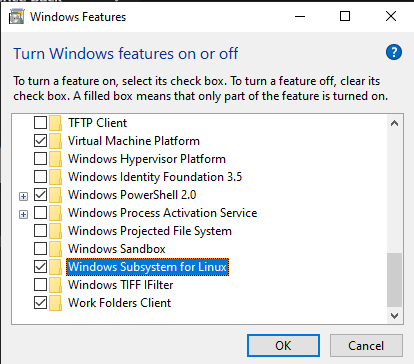
You must first enable the "**Windows Subsystem for Linux**" optional feature before installing any Linux distributions on Windows.
* Enable Windows Subsystem Linux for Linux
Run Open PowerShell **as Administrator (Start menu > PowerShell > right-click > Run as Administrator)** and enter this command:
Copy This Command
```
dism.exe /online /enable-feature /featurename:Microsoft-Windows-Subsystem-Linux /all /norestart
```
#### Download the latest package:
* [WSL2 Linux kernel update package for x64 machines](https://wslstorestorage.blob.core.windows.net/wslblob/wsl_update_x64.msi)
1. Run the update package downloaded in the previous step. (Double-click to run - you will be prompted for elevated permissions, select ‘yes’ to approve this installation.)
### Set WSL 2 as your default version
Open PowerShell and run this command to set WSL 2 as the default version when installing a new Linux distribution:
```
wsl --set-default-version 2
```
### Enable virtualization on BIOS
> Watch few Tutorials on [Youtube](https://www.youtube.com/results?search_query=enable+virtualization)
## Install Git bash
[Download Link](https://git-scm.com/downloads)
## Install Docker Desktop
[Download Link](https://docs.docker.com/desktop/setup/install/windows-install/)
## Setup Guide
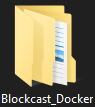
Create New Folder on **Downloads (or where you want file path)** in your File Explorer
* FIle name "**Blockcast\_Docker**"
Open Git bash
* If you Create File on Downloads Follow this Command **Step by Step**
Step 1:
```
cd ./Downloads/Blockcast_Docker
```
Step 3:
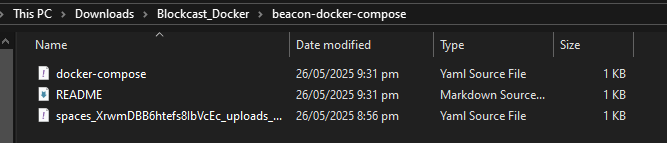
**Download BEACON Software**: Obtain the [docker-compose.yml](https://3364791352-files.gitbook.io/~/files/v0/b/gitbook-x-prod.appspot.com/o/spaces%2FXrwmDBB6htefs8IbVcEc%2Fuploads%2Fgit-blob-8f9e8f22b06224656c3a0b8e79a0b6e000d6597c%2Fdocker-compose.yml?alt=media) inside File path where located **Blockcast\_Docker**
(**Example**)
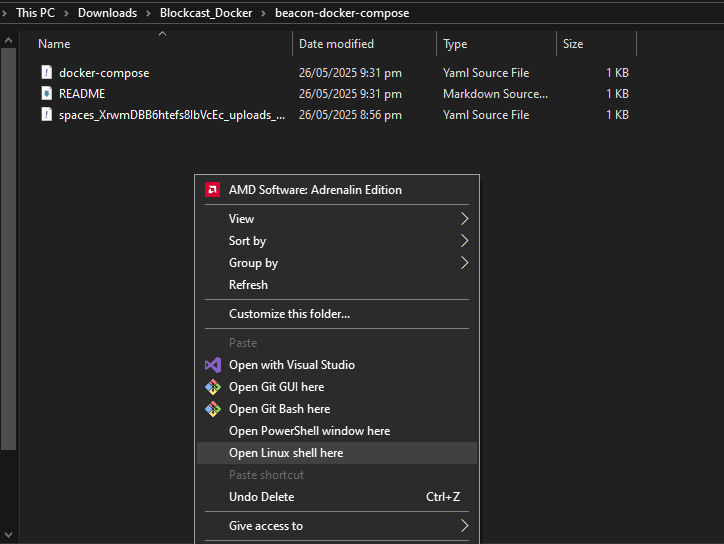
Step 4: Go to inside on your File Path Folder
"**Shift** + **Right Click**" Should be looks like on Picture
Step 5: **Generate hardware and challenge key**
```
docker compose up -d
```
```
docker compose exec blockcastd blockcastd init
```
It would generate an output that contains your device's **Hardware ID, Challenge Key and a Registration** URL:
Example:
```
Hardware ID:
------------
c6ff0e6f-bc4d-4151-47c3-07df0e3cf53f
Challenge Key:
--------------
MCowBQYDK2VwAyEAXP49l4pBK1V5qy7vbRJYv3etRdEr7ycsQAvrgS+hQY0=
Register URL:
-------------
https://app.blockcast.network/register?hwid=c6ff0e6f-bc4d-4151-47c3-07df0e3cf53f&
```
1. Go to our web portal and log in/register
2. Copy and paste the Registration URL from the console output with your pre-filled Hardware ID and Challenge Key into your browser, OR
3. Go to Manage Nodes page, press **Register Node** button, and manually enter your keys in the portal registration flow
Step 6: **Launch and start running Blockcast Beacon**
1. Start running your Blockcast BEACON with command `docker compose up -d` from the folder where `docker-compose.yml` is saved
2. Verify everything is up and healthy with `docker compose ps`
Copy
```
NAME COMMAND SERVICE STATUS PORTS
beacon-docker-compose-watchtower-1 "/watchtower" watchtower running (healthy) 8080/tcp
beacond "envdir /var/opt/mag…" beacond running
blockcastd "/usr/bin/blockcastd…" blockcastd running
control_proxy "/usr/bin/control_pr…" control_proxy ru
```